Single Sign-On (SSO)
Single sign-on (SSO) lets your members sign in with an account they already have — Google, or your company's OpenID Connect (OIDC) identity provider — instead of creating a new password. You configure it per site, with your own provider credentials.
How it works
You register an identity provider (say Google) once, in the Users → Authentication tab. After that, your login page can offer a "Sign in with Google" button. When a member clicks it, they sign in with their existing account, and — if you allow it — a member record is created for them automatically the first time (just-in-time provisioning).
Each provider is scoped to your site. Members who sign in through your provider become members of your site only.
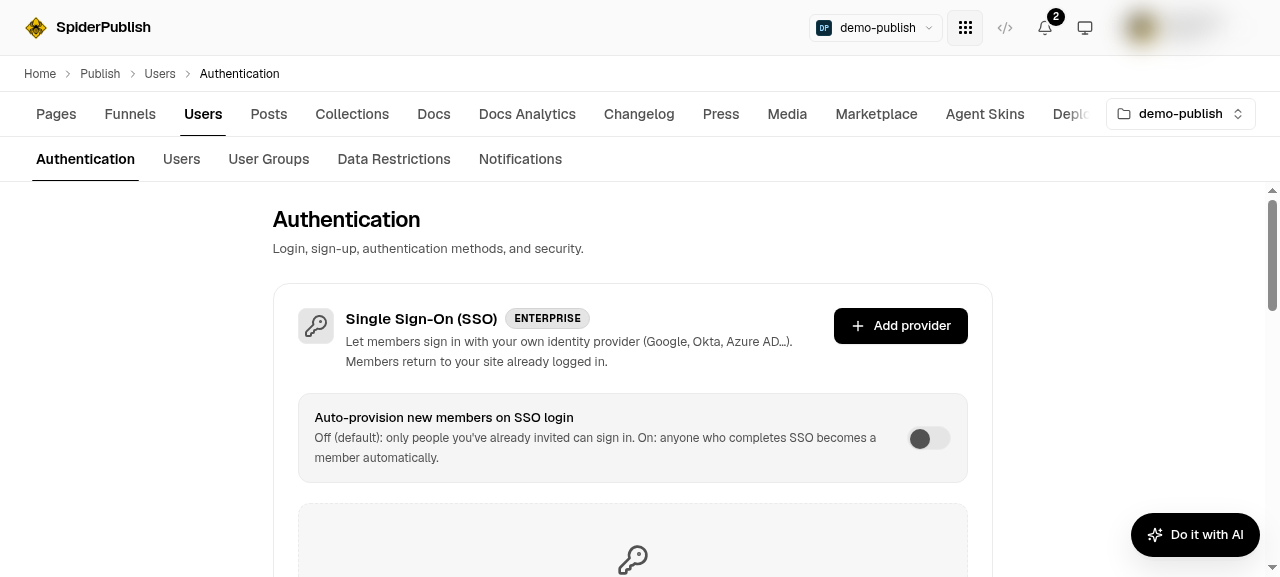
Setting up a provider
Create an OAuth app with your provider (for example, in the Google Cloud console, or your identity provider's admin console — Okta, Entra ID, Auth0 and Keycloak all issue OIDC apps). You'll get a client ID and client secret.
Register the redirect URI with the provider. SpiderPublish uses a per-site redirect URI of the form:
https://your-domain.com/api/auth/sso/callback/<project>::<provider>The exact value is shown in the Authentication tab when you add the provider — copy it into your provider's "authorized redirect URIs" list. This step is required; sign-in fails with an error from the provider if the redirect URI isn't registered.
Add the provider in Users → Authentication: paste the client ID, client secret, issuer, and the scopes you want.
Choose your provisioning policy — whether a first-time SSO sign-in automatically creates a member (and with which default role and groups), or whether only already-invited people may sign in.
Publish your site, then test the "Sign in with [provider]" button on your login page.
Login methods at a glance
Members can sign in with any of the methods you enable:
Email + password
Magic link (a one-time link emailed to them)
Email OTP (a one-time code emailed to them)
SSO (Google, or any OpenID Connect provider)
Security
Member sessions are short-lived and bound to your domain, with idle and absolute expiry you control in the Authentication tab. A member's session never works on any site but yours.
Next steps
Site Members & Gated Pages — the access model.
Managing Members & Groups — roster, groups, and Data Restrictions.