Build a Business Directory
Who this is for: Anyone running a SpiderPublish site who wants a page per city and a page per business — "plumbers in Miami", "agencies in Berlin" — generated from business data rather than written by hand. No code required for the dashboard route.
What you'll learn: How to create a directory category, fill it from your own business data or from a file, what URLs you get, how to keep it from going stale, and how to hand the same job to an agent.
Before you begin
A SpiderPublish site with the dashboard open at Content Studio.
Business data to put in it. Either your own corpus — every business SpiderIQ has seen for you, from SpiderMaps, SpiderSite, SpiderCompanyData and SpiderPeople merged — or a JSON file of your own.
Nothing to install, and no deploy. Listings are live on save.
Steps
Step 1 — Open Directory
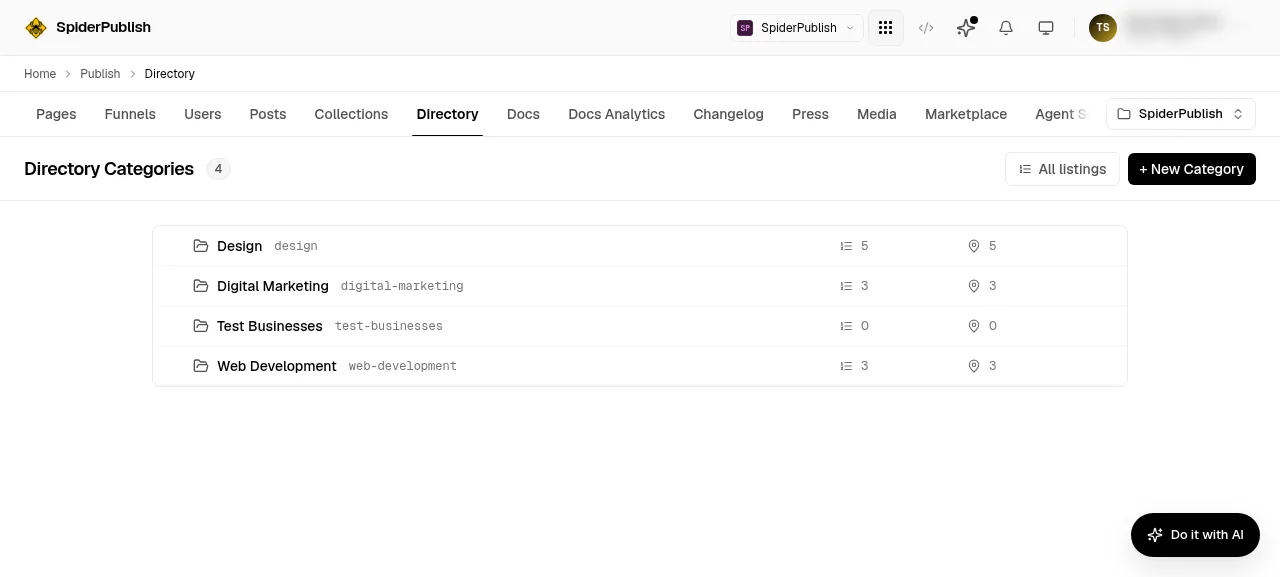
In Content Studio, click Directory in the tab row. It sits between Collections and Docs. The screen lists every category you have, with its slug and two counts: listings and cities.
Step 2 — Create a category
Click + New Category. A category is the vertical — Plumbers, Design, Accountants — and its slug becomes the second segment of every URL underneath it.
Do not create one category per city. One category already spans all its cities: that is what the hub page is. Plumbers in Miami as a category name is the classic wrong turn and it produces a directory with one city each and no hub worth having.
Step 3 — Write the SEO templates
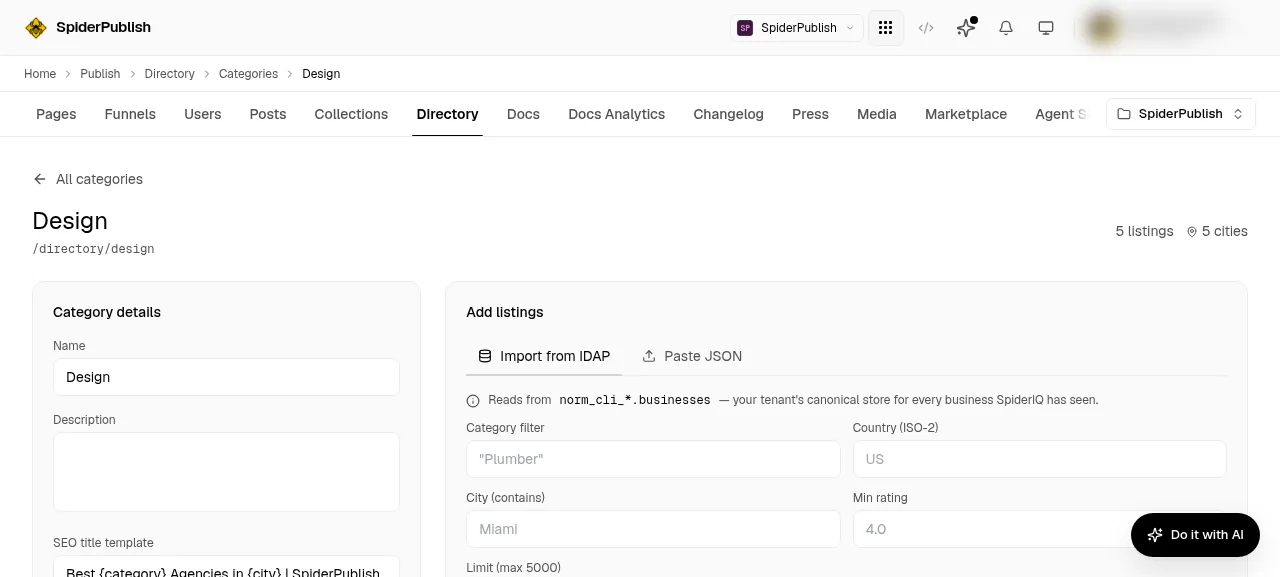
Fill in SEO title template and SEO description template. They accept three placeholders — {category}, {city} and {listing} — and they are rendered on every public page and used for the entries this category contributes to your sitemap.
That second half is the reason to read them twice: a typo here reaches search engines, not just one page.
Step 4 — Fill it with listings
Open the Import from IDAP tab and set the filters you want. All five are optional:
Filter | What it does |
|---|---|
Category filter | matches the business's own category list, for example |
Country (ISO-2) | exact, uppercase, for example |
City (contains) | a substring match, so |
Min rating | an inclusive lower bound |
Limit (max 5000) | how many rows to bring in |
Then click Import from IDAP. The import reads your business data directly — there is no export step and no pipeline to configure — and carries every column your data declares into the listing.
The sibling Paste JSON tab does the same job from a file you provide, for data that did not come from SpiderIQ.
Step 5 — See what you got
Your listings appear underneath, with the cities panel on the left showing which city pages now exist. City is not something you set: it is derived from each listing's city and state as it is imported.
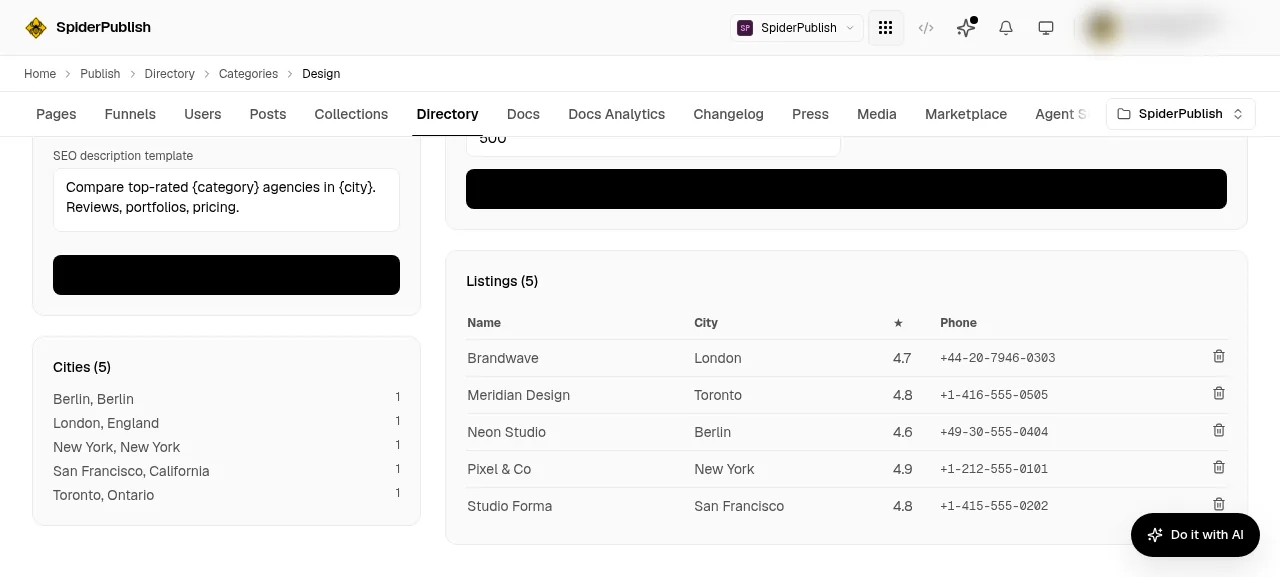
Your pages are already live. There is no publish step and no deploy:
/directory/design                              the hub — every city with listings
/directory/design/berlin-berlin                the listings in that city
/directory/design/berlin-berlin/neon-studio    one business
/directory is the default prefix and you can rename it — to /ls, or anything else — in your template settings. Old URLs keep working as permanent redirects and the sitemap switches over. Renaming needs a deploy, and you should do the rename and the deploy together: the sitemap moves the moment you save while the site itself moves at deploy, so the gap between them advertises addresses that are not being served yet.
Step 6 — Keep it from going stale
Re-running an import adds and updates. It never removes. A business that disappears from your data, or is renamed so it produces a different address, keeps its old listing published — and every re-run drifts the category further from its source.
Clearing those out is called prune, it is off by default, and it archives rather than deletes, so it is reversible. The dashboard import does not offer it — prune is available from an agent or the command line:
spideriq directory listings import-from-idap design \
  --category-filter "Design agency" --country-code US --limit 5000 --prune
Prune refuses rather than guess when a filter matched nothing, or when the import hit its limit — in both cases "missing from this import" would not mean "gone". The refusal names which of the two it was. It is an answer, not a glitch: change the filters rather than running it again.
Nothing runs on a schedule. Re-importing is a decision you make.
Check it worked
The category row shows a listing count and a city count above zero.
Open
/directory/<your-category>on your own domain. You should see your cities.Click through to a city, then to a business. All three levels serve.
Open
/sitemap.xmland search for your category slug. Every category, city and listing should be there.
A listing whose city is empty is the one thing this check cannot see: it is published and reachable at its own address, but it appears on no city page, because it produces no city. Compare the listing count against what you imported rather than counting what the city pages show.
Troubleshooting
The category page is empty. The import matched nothing. Check the filters — Country (ISO-2) is exact and uppercase, and Category filter matches the business's own category text, not your category name.
A city appears twice under slightly different addresses. The same city is stored with two different state spellings — NY in some rows and New York in others — and the address is derived from both. Make the state consistent in your data before importing, rather than after.
The import brought in fewer rows than expected. It stopped at Limit. Raise it, up to 5000, or narrow the filters and import in passes.
I renamed the prefix and the new addresses return not-found. Deploy the site. The sitemap and the API follow the rename immediately; the site itself follows at deploy. If you already tried the new address before deploying, wait a minute before retrying — the not-found answer is briefly cached.
A business I deleted is still listed. Imports never remove. Use prune, from an agent or the command line.
Or hand it to an agent
Everything above is two tool calls:
directory_create_category(name: "Plumbers", slug: "plumbers",
  seo_title_template: "Best {category} in {city} | Acme")

directory_import_from_idap(category_slug: "plumbers",
  category_filter: "Plumber", country_code: "US", rating_min: 4.0, prune: true)
There are eleven directory tools in total, and they are in @spideriq/mcp-publish from 1.43.0 and in @spideriq/mcp from 1.91.1.
Related
Directory Tools — all eleven tools, with their errors
Directory Commands — the same operations from the command line
Live Collections — binding a page to a data source
Create a Custom Collection — for content that is not businesses