Managing Members & Groups
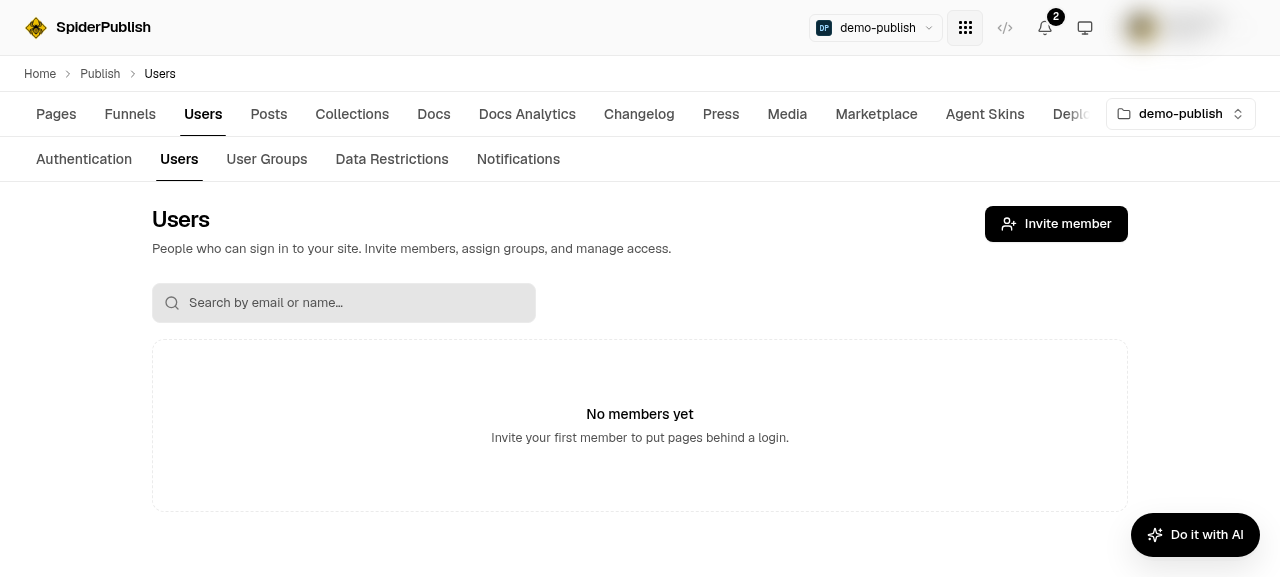
You manage everyone who can sign in to your site from Content → Users. The Users area mirrors the tabs you may know from Softr: Members, Authentication, Groups, Data Restrictions, and Notifications.
Members
The Members tab is your roster. From here you can:
Invite a member by email. They receive an email invitation; once they accept and set a password (or sign in with SSO), they become an active member.
Group a member when you invite them, or change their groups later.
Ban / unban a member to revoke or restore their access immediately.
Change a member's role.
Your plan sets how many members you can have; the tab shows your current usage against that cap.
Groups
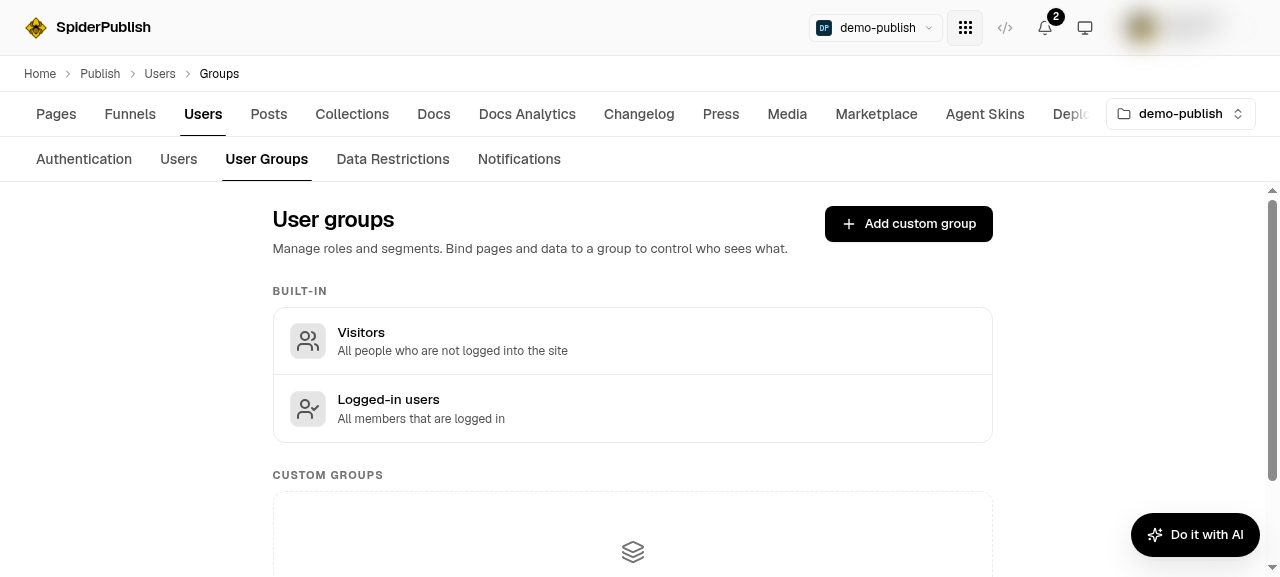
Groups are how you give different members access to different pages.
Built-in groups are automatic (for example, "all logged-in members").
Custom groups are ones you create. A group can be a simple named bucket you add members to, or a rule-based group whose membership is decided automatically by a condition.
Once you have a group, set a page's Visibility to Group restricted and choose which groups may see it. A member sees the page only if they belong to one of the allowed groups.
Data Restrictions
Page-level gating controls which pages a member can open. Data Restrictions go one level deeper: they control which records a member sees on a page that shows live data.
For example, you can add a rule like "members of the insiders group may see posts tagged members-only." The filter is applied on the server before the data ever reaches the browser, so members can't see records they aren't entitled to — even by inspecting the page or calling the API.
You define these rules in the Data Restrictions tab: pick the data source, the group, the field, the operator, and the allowed values.
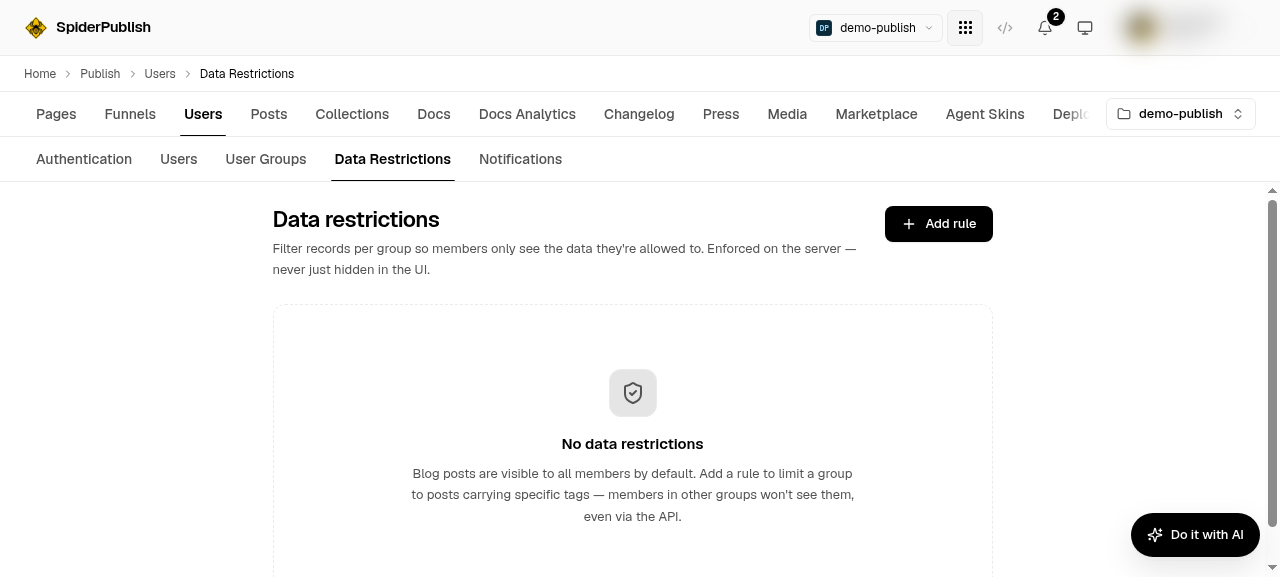
What version one covers. Today the rules that are enforced are blog posts filtered by tag. The tab will store a rule against another field or operator, but only the posts-and-tag combination is applied when a page fetches data — so treat anything else as not yet enforced. Restrictions are also deny by default: as soon as posts carry any rule, a member sees only what a rule allows them, and a member in several groups sees the union of all their groups' allowances.
Notifications
The Notifications tab controls the emails your members receive — the sender identity and the transactional templates (invitations, password resets, and so on).
A note on managing members
Member management lives in the dashboard and in the SpiderPublish API — and the API is the whole surface, not a subset. Every members endpoint accepts a project token as well as a dashboard session, so an agent or a script can list and invite members, build groups, set page access, write restrictions and configure SSO. See Site Members & Access in the API Reference for each endpoint with a runnable example.
There is no command in the CLI and no members tool in the MCP server yet, so an agent reaches this feature over REST.
Next steps
Site Members & Gated Pages — the access model and how to turn gating on.
Single Sign-On (SSO) — let members sign in with Google, or your identity provider.